Images and Containers
An image is a stack of immutable, content-addressed layers merged by a union filesystem; a container adds one thin writable layer on top. Watch copy-on-write happen, and see why a thousand containers from one image cost almost nothing.
🎯 What you'll learn
- Layers: immutable, content-addressed, shareable
- Union filesystems (OverlayFS) and the merged view
- What a container adds, and copy-on-write
- Inspecting images and containers (history, diff, save vs export)
📚 Before you start
1Recap: The Distinction That Everything Else Builds On
The Docker Fundamentals topic introduced images as read-only templates and containers as running instances of them. This topic goes one level deeper: how an image is actually structured on disk, and what exactly a container adds on top of it. Understanding this is the foundation for writing efficient Dockerfiles (next topic), reasoning about build cache, and understanding multi-stage builds.
2An Image Is a Stack of Layers
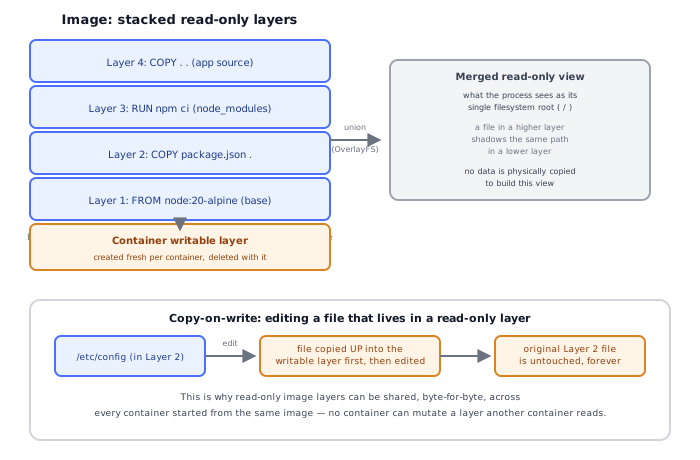
A Docker image is not one big filesystem blob. It's an ordered stack of layers, where each layer is a filesystem diff — a record of files added, changed, or deleted relative to the layer below it. Layers are:
- Immutable — once created, a layer's content never changes.
- Content-addressed — each layer is identified by a cryptographic hash of its contents, not by a name you chose.
- Shareable — if two images both have a layer with the identical hash (e.g., both
FROM node:20-alpine), Docker stores that layer's data only once on disk and reuses it for both images.
docker history node:20-alpine
# IMAGE     CREATED BY                                      SIZE
# <hash>    CMD ["node"]                                     0B
# <hash>    RUN apk add --no-cache ...                        41MB
# <hash>    ENV NODE_VERSION=20.11.0                          0B
# <hash>    /bin/sh -c #(nop)  CMD ["/bin/sh"]                0B
# ...
Each row in docker history corresponds to one instruction in the Dockerfile that built the image (covered fully in the Dockerfile topic) and, for instructions that touch the filesystem, one layer.
3From Layers to a Single Filesystem: The Union Filesystem
A process running inside a container needs to see one coherent filesystem, not a stack of diffs. This is the job of a union filesystem — on Linux, most commonly OverlayFS. OverlayFS takes N read-only directories (the image's layers, "lower" dirs) plus one writable directory (the container's own layer, "upper" dir) and presents a single merged view: for any given path, the file from the topmost layer that contains it wins, effectively shadowing the same path in any layer below.
4What a Container Actually Adds
When you docker run an image, Docker does not copy the image's data anywhere. It:
- Creates a new, empty, writable layer (the "container layer") on top of the image's stack of read-only layers.
- Creates a new set of namespaces (PID, network, mount, etc. — from the Fundamentals topic) and a cgroup for the new process.
- Starts the image's configured process (or your override command) inside those namespaces, with its root filesystem mounted as the OverlayFS merge of image layers + the new writable layer.
This is why starting a container is fast — no data copy — and why disk usage for N containers from the same image is proportional to what each container actually writes, not to the image size N times over.
5Copy-on-Write
If a containerized process modifies a file that physically lives in one of the read-only image layers, OverlayFS does not modify that layer (it can't — it's read-only and shared). Instead it performs copy-on-write: the file is copied up into the container's writable layer in full, and the edit happens there. The original file in the image layer is untouched. This has two direct consequences:
- The underlying image is never mutated by running a container from it — you can run the same image a thousand times and each container's edits are invisible to the others and to the image itself.
- Modifying a large file that lives deep in the image is expensive the first time — a 1GB file needs a full 1GB copy-up before a single byte can change, even to flip one bit. This is one of several reasons large files that change often (logs, databases) belong in a volume (its own topic), not the container's writable layer.
6Inspecting What's Actually There
docker inspect myimage:tag          # full metadata: layers (RootFS.Layers), config, env, entrypoint...
docker history myimage:tag          # per-layer size and the command that created it
docker diff mycontainer             # files added(A)/changed(C)/deleted(D) in a running container's writable layer
docker export mycontainer > fs.tar  # flatten a container's merged filesystem into one tarball (loses layer history)
docker save myimage:tag -o img.tar  # save an image WITH its layers intact (for `docker load` elsewhere)
docker export vs docker save is a common point of confusion: export gives you a flat filesystem snapshot of a container (useful for inspecting final state, not for redistributing as a layered image), while save preserves the full image, including individual layers and metadata, in a format docker load can reconstruct exactly.
7Two Containers, One Image, Independent Writes
docker run -d --name c1 alpine sh -c "echo hello > /data.txt && sleep 3600"
docker run -d --name c2 alpine sh -c "sleep 3600"

docker exec c1 cat /data.txt   # "hello"
docker exec c2 cat /data.txt   # "cat: can't open '/data.txt': No such file or directory"
Both containers were started from the exact same alpine image layers, but each has its own independent writable layer. c1's write to /data.txt exists only in c1's writable layer; c2 never sees it, and the shared alpine base layers remain byte-for-byte identical for both.
Under the HoodHow it works internally▾
Layer identity is a content hash, not a Dockerfile line number. Docker computes each layer's ID from a hash of its diff content (and build context, for build-time layers). This is what allows docker pull to skip layers you already have locally — it checks hashes against your local layer store before downloading — and what allows completely unrelated images to share storage for a common base layer without either image "knowing" about the other.
The image build cache is layer reuse applied at build time, not run time. When you docker build, each instruction is checked against the cache: if an instruction is byte-identical to one previously run, AND every layer before it in this build also hit the cache, AND (for COPY/ADD) the referenced files' content hashes match what was copied last time, Docker reuses the existing layer instead of re-executing the instruction. This is exactly why layer order in a Dockerfile matters enormously for build speed — covered in full in the Dockerfile topic — but the mechanism underneath is the same content-addressed layer store described here.
OverlayFS has a hard practical limit worth knowing about: it has (or had, depending on kernel version) a maximum stack depth (historically 128 layers on older kernels), and very deep layer stacks add lookup overhead — every file access may need to check layers from the top down until a match is found. This is one motivation (a minor one compared to build-cache design) for tools like docker build --squash or multi-stage builds (its own topic) that reduce the final layer count.
A container's writable layer is itself just another OverlayFS "upper" directory — mechanically no different from an image layer except that it's mutable and gets deleted (along with all its contents) the moment the container is removed. docker commit is the escape hatch that turns a container's writable layer into a new permanent, read-only image layer — useful for debugging or ad hoc snapshotting, but not a substitute for reproducible Dockerfile-driven builds because it captures whatever undocumented state happens to be in that container right now.
⚠️ Common Pitfalls
- Assuming
docker runing the same image twice gives you shared, mutable state — each container gets an independent writable layer; changes in one are invisible to the other and to the image. - Editing files inside a running container as a "fix" and expecting it to persist across
docker runs of the image — that edit lives only in the container's writable layer, which is destroyed ondocker rm; the fix belongs in the Dockerfile (rebuild the image) or in a volume, not in a live container. - Confusing
docker export/importwithdocker save/load— export/import flattens to a single layer and discards image metadata/history; save/load preserves the full layered image losslessly. Using export as a backup mechanism for an image silently throws away its layer structure. - Not realizing a "small" Dockerfile change can invalidate a huge amount of cached layers — because every layer's cache validity depends on every layer above and below it being unchanged, editing an early instruction cascades: everything after it must rebuild even if those later instructions themselves didn't change (fully explained with ordering strategy in the Dockerfile topic).
- Treating
docker commitas a build process — it captures ad hoc, undocumented container state into an image; anyone rebuilding "from scratch" gets nothing describing how that image was actually produced, unlike a Dockerfile, which is a reproducible, reviewable recipe. - Copying large mutable files (databases, logs) into the image or writing them into the container's writable layer — every write triggers copy-on-write overhead if the file originated in a read-only layer, and none of it survives container removal; this data belongs in a volume.
📋 Quick Reference
Image  = ordered stack of immutable, content-addressed, shareable layers
Container = same image layers (read-only) + one new writable layer (upper dir)
             merged into one view via a union filesystem (OverlayFS on Linux)

docker history <image>     per-layer size + originating instruction
docker inspect <image>     full metadata, RootFS.Layers list
docker diff <container>    A/C/D changes in the container's writable layer
docker export <container>  flatten container fs to a tarball (no layer history)
docker save <image>        preserve full layered image to a tarball (for `load`)
docker commit <container>  freeze a container's writable layer into a new image layer
                            (ad hoc — not a substitute for a Dockerfile)

Copy-on-write: editing a file from a read-only layer copies it UP into the
writable layer first; the original layer is never mutated.

Build cache = layer reuse at build time, keyed on instruction + prior cache hits
              + (for COPY/ADD) content hash of the copied files.
🧠 Key takeaways
- Images are stacks of immutable, content-addressed layers, shared on disk between images.
- OverlayFS merges them; a container adds one writable layer (no copying at start).
- Copy-on-write: modifying a lower-layer file copies it up first (expensive for big files).
- Removing a container discards its writable layer; use
docker save(layers) vsexport(flat) correctly.
🎤 Interview Q&A
Q1How are Docker images structured?core▾
As a stack of read-only layers, one per filesystem-changing instruction, identified by content hashes and shared between images. A running container adds a thin writable layer (copy-on-write).
- Why does layer ordering matter? Cache reuse: changing a layer invalidates all layers after it.
Q2Tags vs digests?core▾
Tags (node:20) are mutable pointers; digests (node@sha256:…) are immutable content addresses. Pin digests (or immutable versioned tags) in production for reproducibility.
- Why avoid
latest? It changes unpredictably and makes rollbacks unclear.
Q3What's the container lifecycle?core▾
Created → running → paused/stopped → removed. docker stop sends SIGTERM, then SIGKILL after a grace period (10 s default). Restart policies (unless-stopped, on-failure) restart crashed containers.
- Why handle SIGTERM? For graceful shutdown: finish requests, close connections.
Q4How do you limit container resources?senior▾
--memory and --cpus flags (cgroups). Exceeding the memory limit gets the process OOM-killed. Runtimes must be container-aware (JVM, .NET and Node read cgroup limits in modern versions).
- Exit code 137 means? Killed by SIGKILL, often OOM.
Q5How do you debug a running container?core▾
docker logs, docker exec -it <c> sh, docker inspect, docker stats, and for distroless images, ephemeral debug containers sharing namespaces (docker debug, kubectl debug).
- Why might exec fail? Minimal images have no shell.
🛠️ Practice exercises
Each exercise is a file in this topic folder. Code exercises are self-checking: run them and make the checks pass.
✅ Check yourself
Answer the questions — feedback is instant.