Troubleshooting a Linux Server
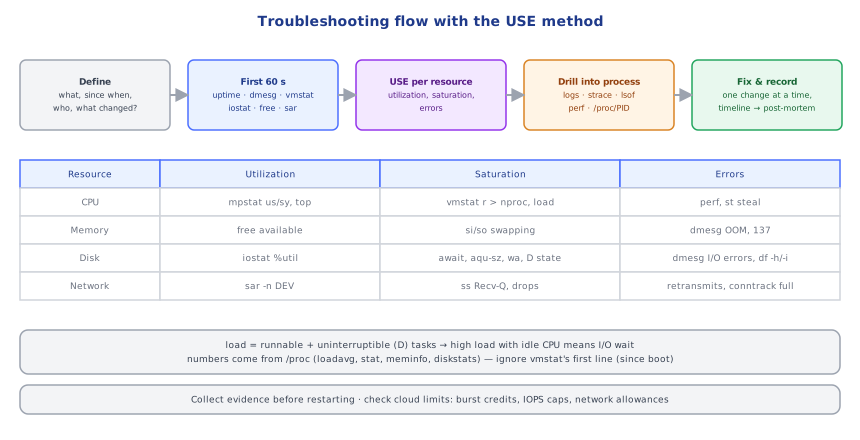
'The server is slow.' Work it like an engineer, not with random commands: define the problem, run the first-60-seconds checklist, apply the USE method to every resource, and only then dig into a process. Practice on real outputs.
🎯 What you'll learn
- A systematic method: define, USE, application, hypothesis
- The first-60-seconds command checklist
- Reading load, CPU, memory, disk and network signals
- Inspecting a process with strace, lsof, perf, and common failure patterns
📚 Before you start
1A Method, Not Random Commands
When a server is "slow" or "broken", work systematically:
- Define the problem: what's slow/failing, since when, for whom, what changed (deploys, config, traffic, certificates expiring)?
- Check the big four resources with the USE method — for each resource, look at Utilization, Saturation and Errors: CPU, memory, disk I/O, network (plus file descriptors, connections, threads).
- Look at the application (logs, error rates, latency, dependencies).
- Form a hypothesis, test it, change one thing at a time, and write down what you did (the timeline feeds the post-mortem —
devops-cloud/observability/).
2The First 60 Seconds
uptime                      # load averages 1/5/15 min — trend up or down?
dmesg -T | tail -20         # kernel: OOM kills, disk errors, network drops
vmstat 1 5                  # r (run queue), b (blocked), si/so (swap), us/sy/wa/st CPU
mpstat -P ALL 1 3           # per-CPU: one core pegged = single-threaded bottleneck
pidstat 1 3                 # per-process CPU
iostat -xz 1 3              # per-disk: %util, await (latency), r/s w/s, aqu-sz
free -m                     # memory: look at "available", not "free"
sar -n DEV 1 3              # network throughput per interface
sar -n TCP,ETCP 1 3         # connection rate, retransmits
top / htop                  # who is consuming it
(This is Brendan Gregg's well-known checklist; sysstat provides mpstat/pidstat/iostat/sar.)
3Reading the Signals
Load average
Number of tasks running or waiting for CPU plus those in uninterruptible I/O wait (D). Compare with CPU count (nproc): load 16 on 16 cores may be fine; load 16 on 2 cores with low CPU usage points at I/O.
CPU
- High
us(user): application work — profile it (perf top, language profilers,py-spy,node --prof). - High
sy(system): syscalls, context switches, networking —perf,strace -c -p PID. - High
wa(iowait): CPUs idle waiting for disk. - High
st(steal): the hypervisor gives your VM less CPU — noisy neighbours or exhausted burst credits (AWS T instances).
Memory
- Linux uses free memory for page cache; "available" is what matters.
- Swapping (
si/so> 0 continuously) → severe slowdowns. - OOM killer messages in
dmesg/journalctl -k; containers:OOMKilled, exit code 137. - Leaks: RSS of one process grows steadily (
ps -o rss,pmap -x PID, app heap dumps).
Disk
df -h/df -i— full disk or inodes (02-filesystem_and_permissions/).iostat -x:%utilnear 100% and highawait→ saturated; cloud volumes have IOPS/throughput limits and burst credits (EBS gp2!).iotop/pidstat -d— who's doing the I/O.
Network
- Retransmits, drops (
ip -s link,nstat), connection states (ss -s, CLOSE-WAIT leaks), DNS latency (03-networking_tools/). - Limits: conntrack table full (
dmesg: nf_conntrack: table full), ephemeral port exhaustion, accept queue overflows.
4Inspecting a Specific Process
systemctl status app ; journalctl -u app --since "30 min ago"
ls /proc/PID/fd | wc -l ; cat /proc/PID/limits      # fd usage vs limit
strace -f -tt -p PID -e trace=network,file          # what syscalls is it stuck on?
strace -c -p PID                                     # syscall time summary (Ctrl-C)
lsof -p PID                                          # open files and sockets
cat /proc/PID/status | grep -E 'State|Threads|VmRSS'
gdb -p PID / py-spy dump --pid PID / jstack PID      # thread stacks
perf top -p PID                                      # hottest functions
strace adds heavy overhead — use briefly in production; eBPF tools (bcc/bpftrace: execsnoop, opensnoop, biolatency, tcpretrans) are low-overhead alternatives.
5Common Failure Patterns
| Symptom | Likely causes | Confirm with |
|---|---|---|
| high load, low CPU | disk I/O wait, NFS hang | vmstat b/wa, iostat -x, ps D state |
| app killed randomly | OOM killer | dmesg -T | grep -i oom |
| "No space left on device" | disk full, inodes full, deleted-open files | df -h, df -i, lsof +L1 |
| "Too many open files" | fd limit / fd leak | /proc/PID/limits, ls /proc/PID/fd | wc -l |
| slow only sometimes | GC pauses, CPU steal, burst credits, cron jobs | st in vmstat, app GC logs, list-timers |
| connections fail under load | accept queue, conntrack, ports, pool limits | ss -lnt Recv-Q, dmesg, ss -s |
| everything slow after deploy | regression, config change, cache cold | deploy timeline, compare metrics, roll back |
Under the HoodWhere the Numbers Come From▾
Nearly every tool reads kernel counters from /proc and /sys: uptime and top read /proc/loadavg (an exponentially damped moving average of runnable + uninterruptible tasks, updated every 5 seconds); vmstat/mpstat read cumulative CPU jiffies from /proc/stat and compute deltas per interval; free parses /proc/meminfo (where MemAvailable is the kernel's estimate of memory available without swapping); iostat reads /proc/diskstats (time spent doing I/O → %util, total wait time / completed I/Os → await); ss queries sockets via netlink; ps walks /proc/[pid]/stat. That's why tools that sample deltas need an interval (the first line of vmstat is the average since boot — ignore it), why %util is misleading for SSDs/NVMe that serve many requests in parallel, and why container metrics differ from host metrics (cgroup files like memory.current and cpu.stat give the per-container view).
⚠️ Common Pitfalls
- Restarting before collecting evidence — the problem disappears and returns.
- Reading
freeas "out of memory" because of page cache. - Treating load average as CPU usage.
- Ignoring
dmesg(OOM, disk errors, conntrack). - Changing several things at once.
- Forgetting cloud limits — burst credits, IOPS caps, instance network limits.
📋 Quick Reference
60 s: uptime · dmesg -T | tail · vmstat 1 · mpstat -P ALL 1 · pidstat 1 · iostat -xz 1 · free -m · sar -n DEV,TCP,ETCP 1 · top
USE: utilization / saturation / errors for CPU, memory, disk, network, fds
process: journalctl -u · /proc/PID/{limits,fd,status} · strace -c/-p · lsof -p · perf top · py-spy/jstack
patterns: load≠CPU · OOM 137 · df -i · lsof +L1 · CLOSE-WAIT · st steal · burst credits
🧠 Key takeaways
- Method first: what changed? → first 60 seconds → USE (utilization, saturation, errors) per resource → the process.
- Load counts running and I/O-blocked tasks; high load with idle CPUs means I/O.
- Read available memory (not free), watch swap, dmesg for OOM, steal for VM contention.
- Collect evidence before restarting; change one thing at a time; know cloud limits (burst credits, IOPS).
🎤 Interview Q&A
Q1A server is slow. What do you check first?core▾
USE method: CPU (uptime, top, steal time), memory (free -m, swapping in vmstat 1), disk (iostat -xz 1, df -h), network (sar -n DEV 1, errors, retransmits). Then logs (journalctl, dmesg) and the application's own metrics.
- What's Brendan Gregg's 60-second checklist? uptime, dmesg, vmstat, mpstat, pidstat, iostat, free, sar -n DEV/TCP, top.
Q2How do you tell if the system is memory-starved?core▾
Low available memory in free, swap in/out activity (si/so in vmstat), OOM killer messages in dmesg, and high major page faults.
- Is low 'free' memory bad? Not necessarily; Linux uses spare memory for page cache. Look at 'available'.
Q3How do you investigate high I/O wait?core▾
iostat -xz 1 for device utilization and latency (await), iotop or pidstat -d to find the process, and check for swapping, logging floods, or database checkpoints.
- What does high %util on SSD mean? Not always saturation; SSDs handle parallel I/O, so check latency.
Q4A process keeps dying. How do you find out why?senior▾
Check journalctl -u service, exit codes (137 = SIGKILL/OOM, 139 = segfault), dmesg for OOM kills, core dumps, resource limits (ulimit -a, file descriptors), and application logs around the time.
- Too many open files? Raise
LimitNOFILEand check for descriptor leaks.
Q5How do you debug a hung process?core▾
strace -p <pid> to see system calls it's blocked on, lsof -p for files/sockets, /proc/<pid>/stack or gdb/language-specific tools (jstack, dotnet-dump, py-spy) for thread dumps.
- What's state D in ps? Uninterruptible sleep, usually waiting on I/O.
🛠️ Practice exercises
Each exercise is a file in this topic folder. Code exercises are self-checking: run them and make the checks pass.
✅ Check yourself
Answer the questions — feedback is instant.
free column indicates usable memory?